
In a world buzzing with notifications and endless distractions, finding peace can feel like a Herculean task. Enter the “Do Not Disturb” feature on the iPhone—a magical shield that transforms your device into a serene sanctuary. Imagine this: no more annoying pings during that all-important meeting or constant interruptions while binge-watching your favorite show. It’s like putting on a “Do Not Disturb” sign for your phone, allowing you to reclaim your time and focus.
But how does one activate this digital fortress? Fear not! It’s simpler than trying to explain TikTok to your parents. With just a few taps, you can silence the chaos and enjoy uninterrupted moments. Ready to embrace tranquility? Let’s dive into the easy steps to master the art of “Do Not Disturb” on your iPhone and bring a little zen to your tech life.
Understanding Do Not Disturb Mode
Do Not Disturb mode on iPhone serves as a helpful tool for users seeking uninterrupted focus. This feature silences calls, alerts, and notifications, creating a more serene environment.
What Is Do Not Disturb Mode?
Do Not Disturb mode is a setting that prevents incoming calls and notifications from disturbing users. Users can customize this feature by allowing calls from specific contacts or repeated calls from the same person. Activation options include scheduled times, so it can automatically engage during meetings or quiet hours. This flexibility enhances the user experience by prioritizing peace in daily routines.
Benefits of Using Do Not Disturb
Using Do Not Disturb mode provides several advantages. Reduced distractions during work or leisure time help improve concentration. While in this mode, users experience fewer interruptions, leading to enhanced productivity. It fosters a sense of control over communication, allowing individuals to focus on essential tasks. Users can also enjoy uninterrupted sleep by scheduling this mode for nighttime use, promoting better overall well-being.
How to Put on Do Not Disturb on iPhone
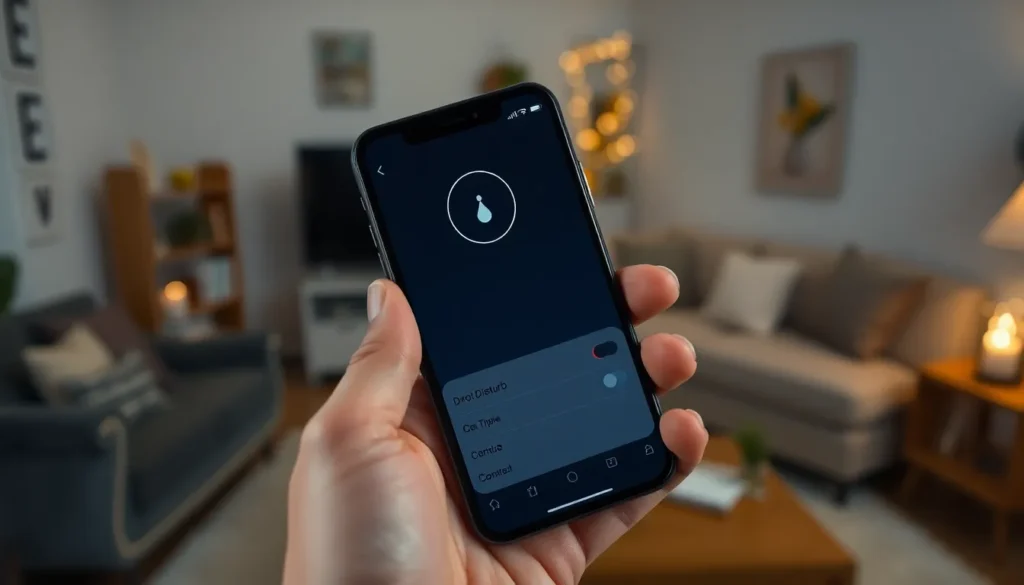
Activating the Do Not Disturb feature on an iPhone helps users maintain focus and reduce distractions. Here are two primary methods for enabling this function.
Using Control Center
Accessing the Control Center provides a quick way to turn on Do Not Disturb. Swipe down from the top-right corner of the screen on iPhones without a Home button. For older models, swipe up from the bottom of the display. Look for the crescent moon icon; tap it to activate the mode. The icon will highlight, confirming the feature is on. Users can disable it by tapping the icon again, seamlessly adjusting their settings as needed.
Using Settings App
Navigating through the Settings app offers additional customization options for Do Not Disturb. Open the Settings app and scroll down to find the “Focus” section. Tap on “Focus,” then select “Do Not Disturb.” Users can personalize their options, such as allowing calls from specific contacts or scheduling activation times. Setting quiet hours ensures that users have uninterrupted periods during key activities or sleep, enhancing their overall experience.
Customizing Do Not Disturb Settings
Customizing Do Not Disturb settings enhances iPhone users’ experience. Several options allow for greater control over notifications and interruptions.
Allowing Calls From Specific Contacts
Allowing calls from specific contacts provides flexibility during Do Not Disturb mode. Users can designate essential contacts, ensuring important calls come through even when the feature is activated. To do this, open the Settings app, select Focus, then choose Do Not Disturb. Tap “People,” then “Add People” to select contacts from the address book. Contacts added here will bypass Do Not Disturb settings and send notifications even during quiet hours. Customization options enable users to filter calls efficiently, balancing focus and communication needs.
Setting Scheduled Do Not Disturb
Setting scheduled Do Not Disturb can further streamline focus times. Users can configure their iPhones to activate the feature automatically during specific hours. Access the Settings app, select Focus, then Do Not Disturb. Enable the “Scheduled” toggle, and set the desired start and end times. This option allows users to establish routines, like activating Do Not Disturb during work hours, meetings, or sleep. With scheduled settings, users can maintain boundaries effectively, ensuring uninterrupted time during crucial activities.
Troubleshooting Do Not Disturb Issues
Do Not Disturb mode can sometimes lead to unexpected challenges. Certain users report that the feature doesn’t activate as scheduled. Checking the scheduling settings resolves this issue.
Another common problem involves notifications still coming through despite the mode being active. This often happens if Do Not Disturb settings allow calls from everyone instead of selected contacts. Adjusting these settings in the Focus menu ensures only permitted calls go through.
Additionally, if the crescent moon icon appears but doesn’t function properly, restarting the iPhone typically resolves the glitch. Users can also try resetting all settings if problems persist. This action restores default configurations without erasing data.
Lastly, it’s important to ensure the phone’s software is up to date. Outdated versions may cause functionality issues. Regular updates improve system performance and enhance feature reliability.
Embracing the Do Not Disturb feature on an iPhone can significantly enhance focus and tranquility in daily life. By silencing distractions during crucial moments users can reclaim their time and attention. Customization options allow for a tailored experience ensuring important communications aren’t missed while maintaining peace.
Troubleshooting common issues ensures the feature works seamlessly. Regularly updating the iPhone’s software further enhances performance and reliability. With these tools at their disposal users can create a more serene environment that fosters productivity and well-being. Prioritizing uninterrupted time is essential in today’s fast-paced world and the Do Not Disturb feature is a valuable ally in achieving that balance.